

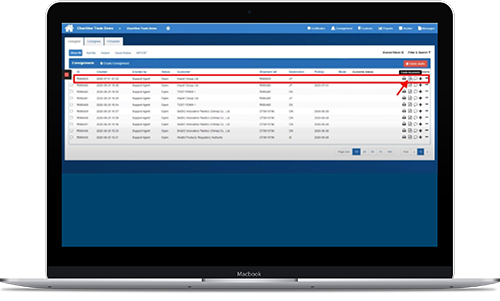
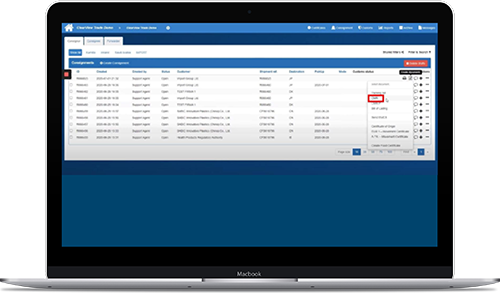
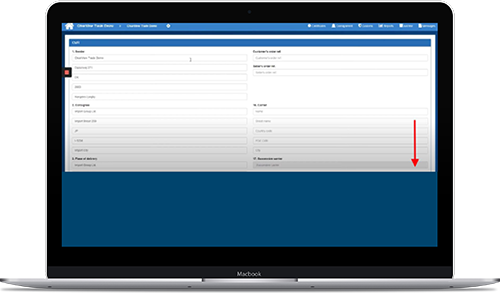
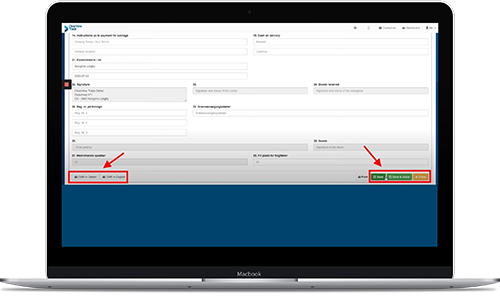


How do you fill out a CMR consignment note on the Traid-platform? We have created a step-by-step guide explaining how to create CMR consignment notes on our digital platform in no time.
See how to create a CMR consignment note in just 6 simple steps:
When all information is correct, you have the following options:
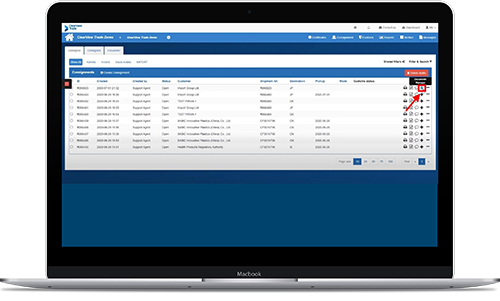
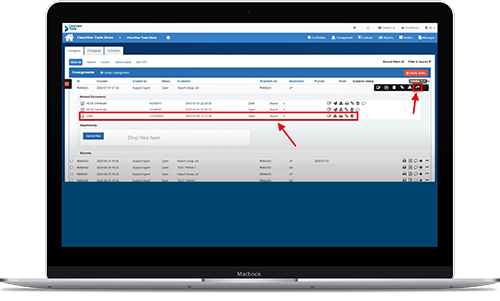
When you return to the list of transport bookings, you will now be able to find the CMR consignment note. To view it, click on the “Documents Manager” icon to the right of the selected shipment.
Remember to invite customers or business partners to view the relevant documents. That way, they can easily access the CMR consignment note and acknowledge it when they receive the shipment. You can always keep an eye on the status of the shipment in the list of transport bookings.
If you have not already shared the document with customers, you can do so by following these steps:
Do you need more information about CMR consignment notes? We have a lot of information on our website that can make you a true expert on the subject. The links below will take you to our certificate page, dictionary and FAQ. Click on the three links and learn more about CMR consignment notes:
If you feel like this guide was comprehensive, you are more than welcome to begin creating CMR consignment notes on the platform. You are also welcomed to book a free demo if you want further clarification on the CMR consignment note-module.
The demo is an energetic guided online tour, and it takes about 30 minutes. Look forward to working on a platform that digitizes and automates your daily workflows.

Knowledge
Get tips straight in your inbox
Get inspired and find out how you can streamline your export processes and logistics
Reach out – we’re ready to help:
Phone: +45 53 50 35 90 | info@clearviewtrade.com
Platform
Get tips straight in your inbox
Get inspired and find out how you can streamline your export processes and logistics
Reach out – we’re ready to help:
Phone: +45 53 50 35 90 | info@clearviewtrade.com